





Virtual PC for Mac: Run Windows and Other Operating Systems on Your Mac
Run virtual machines on your Mac using Parallels Desktop. Access Windows, Linux, and other operating systems alongside macOS without rebooting, switching devices, or disrupting your workflow.
Why Mac users choose Parallels Desktop virtual PC
Most people searching for a virtual PC for Mac need the flexibility to run another operating system without changing how they work. Whether it’s Windows for business applications, Linux for development, or isolated virtual machines for testing, Parallels Desktop keeps everything running alongside macOS.
Work without friction
Keep your Mac as your primary device while running Windows and Linux virtual machines alongside macOS.
Performance you can trust
Run virtual machines with the performance Mac users expect. Parallels Desktop is optimized for Apple silicon and Intel Macs, helping Windows and Linux environments stay responsive during everyday work, development, and testing tasks.
Confidence and control
Create, duplicate, reset, and manage virtual machines from a single Mac. From Windows business applications to Linux development environments and testing systems, Parallels Desktop makes it straightforward to maintain multiple virtual machines on a single Mac.
That’s the real value of a virtual PC for Mac: you keep your Mac workflow, and add Windows where it actually helps.
Why do you need a virtual PC for Mac?
A virtual PC becomes useful whenever you need access to another operating system, application environment, or testing platform without leaving macOS. From Windows business applications and school software to Linux development environments and testing systems, virtual machines let you work across platforms while keeping your Mac as your primary device.

Who it helps
- Professionals and prosumers
- Students
- Developers and technical professionals
- Anyone collaborating across OS boundaries
When it matters
- You need a Windows-only tool for work, finance, engineering, reporting, or client deliverables
- Your course software, testing tools, or exam requirements are Windows first
- You need a dependable Windows environment for testing, debugging, or customer reproduction
- A project uses Windows-specific formats, workflows, or dependencies
- You need Linux development environments on Mac
- You need isolated virtual machines for testing or troubleshooting
What you can do with a virtual PC
- Run Windows and Linux virtual machines while keeping your files and workflow centralized on your Mac
- Install Windows without replacing your Mac, then use the required apps as needed
- Create repeatable Windows setups, including multiple virtual machines for parallel validation
- Open, edit, and share files without “it doesn’t work on Mac” friction
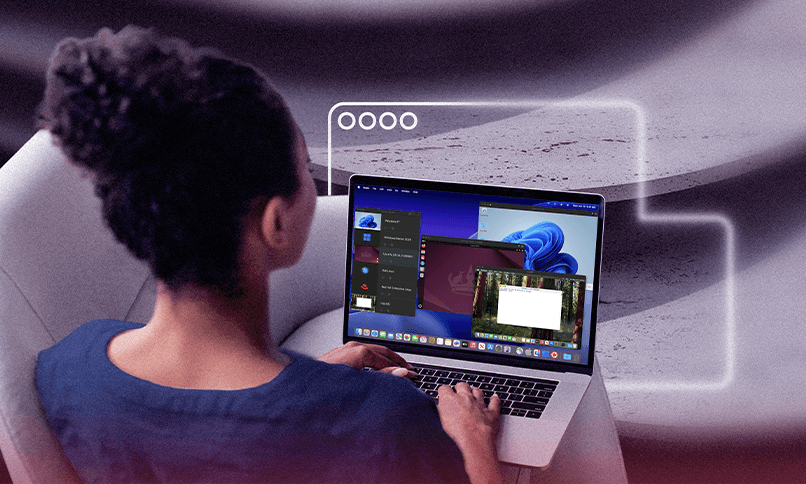
- Create multiple virtual machines for development, testing, training, or separate project environments
Different roles have different reasons, but the outcome is the same: you keep your Mac as your daily driver and use Windows when it earns its keep.
Say hello to Parallels Desktop
Parallels Desktop is built for Mac users who need powerful virtual machine software without the complexity traditionally associated with virtualization.
Whether you’re running a Windows virtual machine, a Linux environment, or multiple testing systems, Parallels Desktop keeps things fast, familiar, and easy to manage.
It’s also designed with modern Macs in mind. On Apple silicon Macs, Parallels Desktop is optimized for performance and day-to-day responsiveness, which is a big reason it’s become the default choice for many users moving beyond older approaches like Boot Camp (which is not available on Apple silicon).
Some alternatives, including VMware Fusion, may fit certain needs, but they often follow a different release cadence and workflow model than Parallels Desktop.
Learn more about virtual machine software for Mac and explore our guide to choosing the best Mac virtual machine for your workflow.
As a virtual PC for Mac, Parallels Desktop is designed around the basics that matter most in real workflows:
Quick Windows setup
You can install Windows and get to a usable environment fast, without turning setup into a weekend project.
Native like workflow
Use coherence mode when you want Windows apps to feel at home in macOS, not trapped behind a separate desktop.
Flexible environments
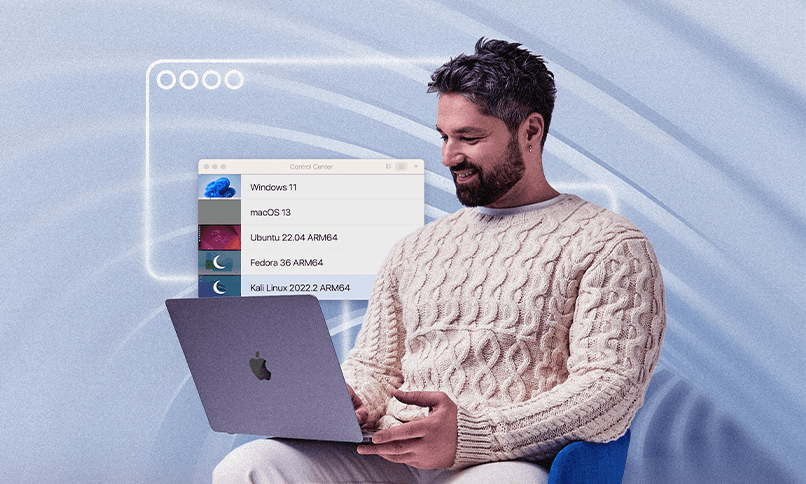
Spin up test, work, and personal setups side by side with multiple virtual machines.
Broad compatibility
Support for a range of supported operating systems, so you can match your setup to the Windows version your workflow requires.
If you want Windows on Mac without turning your day into a series of restarts, this is the practical middle ground.
Value pillars
When people talk about a “virtual PC for Mac,” they’re usually describing outcomes, not features. Our value pillars map what matters most in real-day-to-day use, from getting set up quickly to staying productive, compatible, and in control once Windows is part of your workflow.
Intuitive
Getting started should feel straightforward, even if you have never used virtualization before.
A clean setup path
Fewer steps between download and your first working Windows session.
Windows apps that blend into macOS
Coherence mode helps Windows apps feel like part of your Mac workflow, not a separate world you have to manage.
Less tinkering, more doing
Presets and repeatable VM creation reduce trial-and-error when building or rebuilding an environment.
The point is fewer steps between “I need Windows” and “I’m working.”
Productive
A virtual PC is only useful if it supports real work for long stretches, not just quick one-offs.
One workflow, not two devices
Move between macOS and the Windows environment without rebooting.
Predictable performance
Features like hardware acceleration help keep everyday workloads responsive.
Parallel work when you need it
Use multiple virtual machines for testing, separation, or role-based environments.
Productivity is less about flashy features and more about consistency you can rely on.
Compatible
A virtual PC needs to run the apps you actually depend on, not just a demo workload.
Run what you need for work or school
Launch and run windows apps that are not available on macOS.
Keep files moving between environments
Share project assets, downloads, and documents across macOS and Windows without constant exporting.
Match the right Windows setup to the job
Choose from supported operating systems so your Windows environment meets the app’s requirements.
Compatibility here is practical; it’s about fewer blockers and fewer surprises.
Controlled
Windows on Mac should feel contained and manageable, especially when it’s tied to work.
Clear separation between environments
Windows runs inside the VM, which helps keep system changes and app behavior contained.
Easy reset and repeatability
Snapshots and VM copies let you recover quickly if something breaks or you need a clean start.
Local, reliable access
Your Windows environment runs locally on your Mac, including offline, when that matters most.
This is not about promising perfection. It’s about reducing risk and friction through a setup you can control.
Solution components and where each fits
The right fit depends on how you use Windows and what level of control you need.
| Need | Parallels Desktop edition | What it delivers |
| Personal use and everyday Windows apps | Parallels Desktop | A local Windows VM with tight Mac integration for running Windows apps and the Windows desktop on demand. |
| Power users, creators, and developers | Parallels Desktop Pro Edition | More tuning options for performance and workflows are helpful when you run heavier apps or keep multiple virtual machines. |
| Small business and managed Mac fleets | Parallels Desktop Business Edition | Centralized licensing and admin capabilities for teams who want consistency across devices. |
If you’re mainly solving “I need Windows on my Mac,” start with Parallels Desktop. If you’re managing a group, Business Edition adds the structure most teams want.
Use cases
Different people arrive here for different reasons, but the pattern remains consistent: keep macOS as the home base, then add Windows only where required.
| Students | Run Windows-only course or exam software on a Mac | Install Windows in Parallels Desktop, launch required apps as needed | Finish required work without switching devices |
| Professionals | Use Windows-only tools tied to reporting, finance, client systems, or specialized apps | Run Windows apps locally while keeping Mac tools and files close | Fewer workarounds, faster turnaround on deliverables |
| Developers | Validate behavior across OS environments | Run isolated Windows virtual machines for testing, debugging, and validation | Faster testing and clearer bug reproduction |
| Prosumer workflows | Keep Windows available without changing your primary setup | Use the Windows desktop when needed, or coherence mode for app-by-app use | Windows fits your day instead of interrupting it |
Which edition is right for you?
Standard Edition is ideal for students, professionals, and users who need a virtual machine for everyday productivity, learning, or application compatibility. Pro Edition is designed for developers, testers, and technical users who need multiple virtual machines, advanced networking, and greater resource allocation.
Across these roles, the common thread is control: you decide when Windows shows up and how it’s used.
How it works
Getting started with a virtual PC for Mac is usually simpler than people expect, especially when you separate setup from day-to-day use.
| Step | What you do | What you get |
| 1 | Install Parallels Desktop | The platform on which your Windows environment runs. |
| 2 | Create your virtual machine environment and install Windows, Linux, or another supported operating system. | A working Windows system that opens like any other app. |
| 3 | Launch and run Windows apps alongside macOS, with coherence mode if you prefer | A single workflow that includes both Mac and Windows tools. |
| 4 | Add more environments when needed | The ability to create multiple virtual machines for testing, separation, or different roles. |
| 5 | Keep licensing straight | Parallels Desktop provides a virtual PC; Windows requires its own Microsoft license. |
Once your first VM is set up, repeating the process for additional environments becomes routine.
Run virtual machines on Mac without changing how you work.
Set up your first virtual PC for Mac using the apps and workflows you already rely on. That gives you a real way to evaluate fit, on your own Mac, without committing to a second device or a reboot-heavy setup.
Frequently Asked Questions (FAQ)
Yes, Parallels Desktop runs a complete Windows environment on your Mac, so running Windows apps behaves as expected inside the VM.
Yes, Parallels Desktop provides the virtualization software, and Windows is licensed separately through Microsoft.
On modern hardware, especially Apple silicon Macs, performance is typically predictable for everyday business, professional, and development workloads. The experience depends on your Mac resources and what you run, but the goal is consistency, not novelty.
No, Windows and macOS can run side by side, so you can move between Mac apps and the Windows environment without rebooting.
Yes, you can create multiple virtual machines for testing, separation, or different workflows, and switch between them as needed.
A virtual PC for Mac is software that creates a virtual machine, allowing you to run another operating system, such as Windows or Linux, alongside macOS. With Parallels Desktop, you can create and use virtual machines alongside macOS without rebooting or switching devices.
The terms are often used interchangeably. A virtual machine is software that creates a virtualized computer environment capable of running its own operating system. “Virtual PC” is a common term people use when referring to a virtual machine running on a Mac.
Yes. Parallels Desktop supports Linux virtual machines on both Apple silicon and Intel Macs. Developers, students, and IT professionals commonly use Linux virtual machines for development, testing, education, and technical workloads.
The best virtual machine software depends on your needs, including performance, ease of use, operating system support, and compatibility with Apple silicon. Parallels Desktop is designed specifically for Mac and makes it easy to run Windows, Linux, and other operating systems in virtual machines alongside macOS.